
Take a tour of Ava CRM
Ten screens from the demo company, from a rep’s first call of the day to a manager approving plans. All names and data are made up.
-
Sales rep · Step 1 of 10
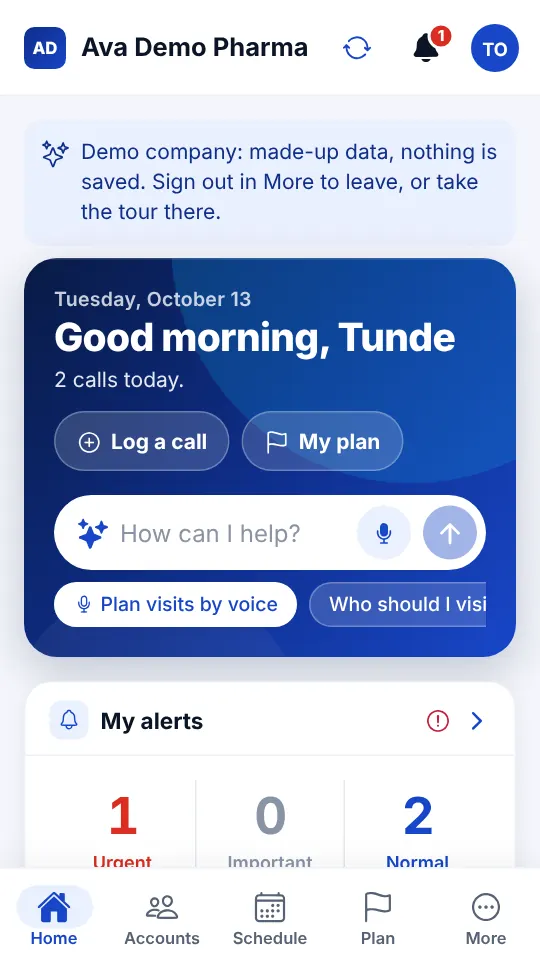
Your day at a glance
Home shows today’s visits, alerts, tasks and how the cycle plan is going, so a rep knows where they stand before the first call.
- Today’s calls and route
- Plan progress against the time left in the cycle
- Visit next: who to see and why
-
Sales rep · Step 2 of 10
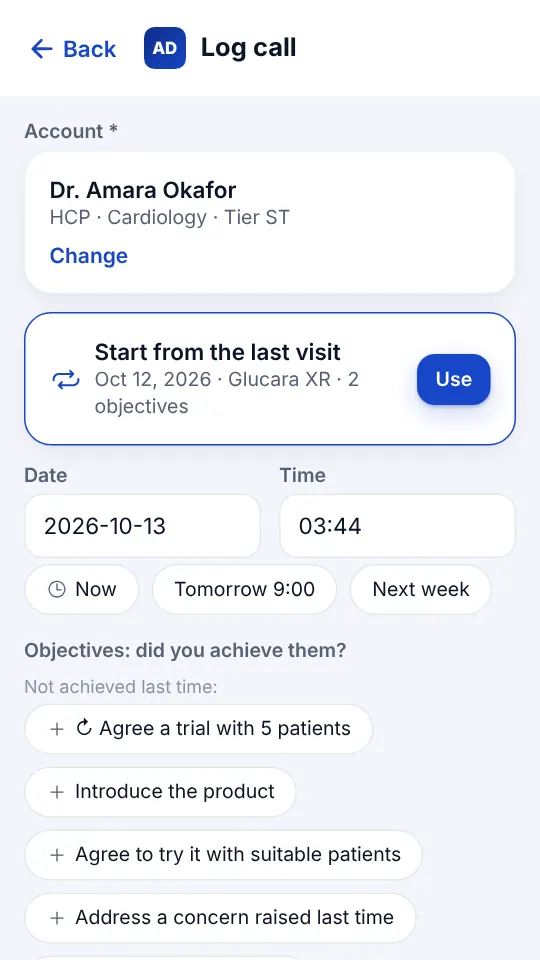
Log a call in a minute
Pick the account and start from the last visit if you like. Objectives not achieved last time come back as suggestions.
- GPS check-in, marked Verified at the account
- Products, key messages and objectives
- Dictate notes, even offline, and let Ava tidy them
-
Sales rep · Step 3 of 10
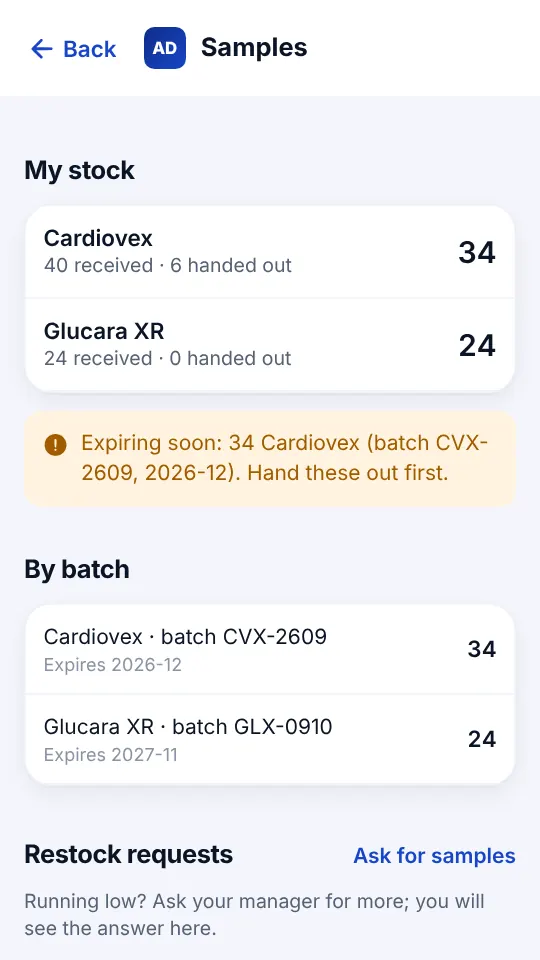
Samples with a signature
Choose the batch and the doctor signs on the screen. Expired batches are blocked and stock is counted each month.
- Stock by product and batch
- Expiry warnings
- Ask your manager for a restock
-
Sales rep · Step 4 of 10
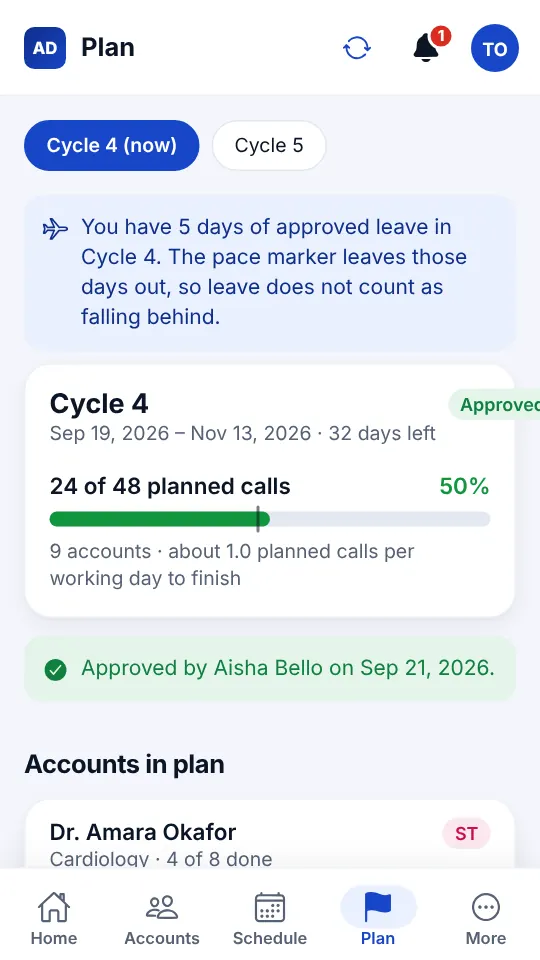
Plan the cycle by tier
Build the cycle plan from account tiers, adjust it, and submit it for approval. Progress is tracked against a pace marker.
- Suggested plan from tiers
- Approved leave adjusts the pace
- Start next cycle’s plan in one tap
-
Sales rep · Step 5 of 10
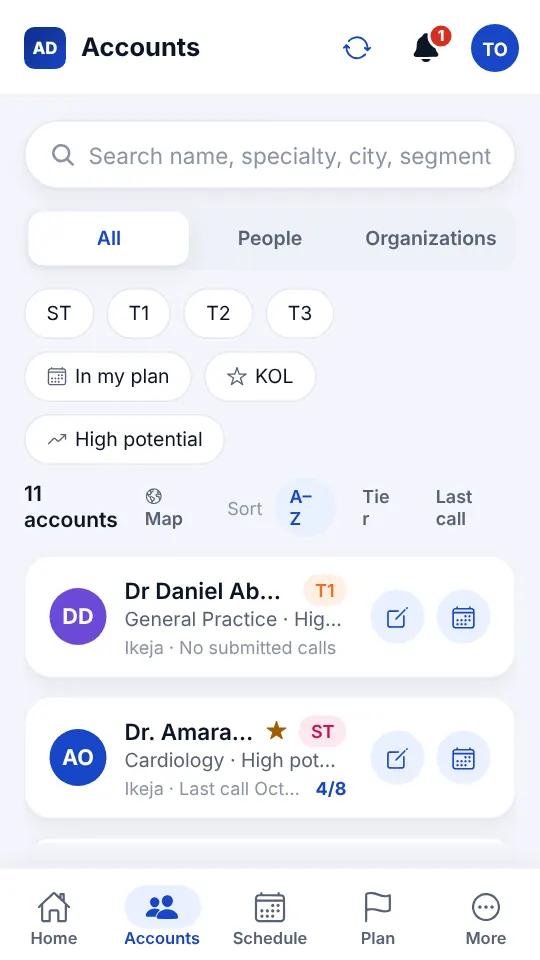
Clean account data
Doctors, pharmacies and hospitals with tiers, specialties and profiling. Filter by tier, KOL or potential.
- ST, T1, T2 and T3 tiers by default
- Duplicate warnings before anyone adds a record
- Corrections go to the manager for approval
-
Sales rep · Step 6 of 10
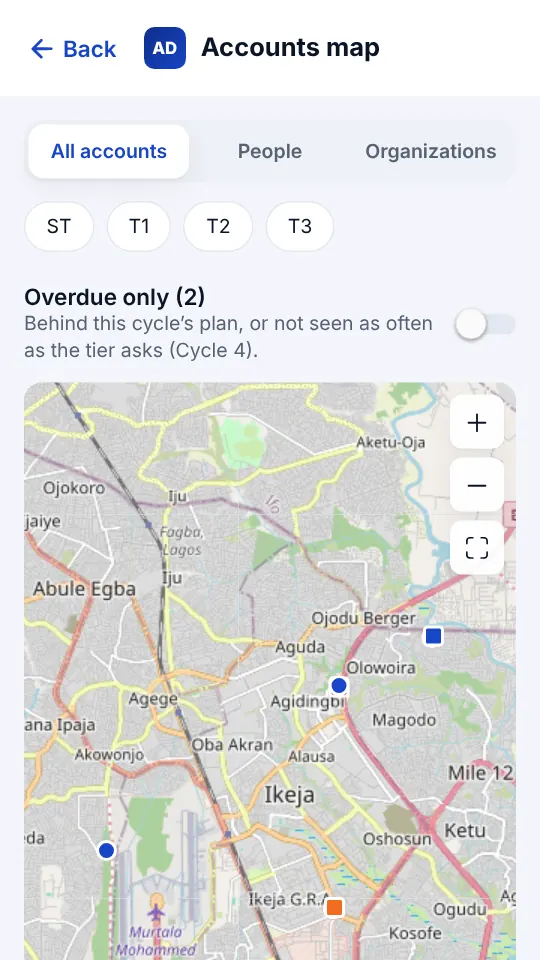
Accounts on a map
See accounts by tier on a map, with overdue ones highlighted, to plan a sensible route.
- Filter by tier and type
- Overdue accounts stand out
- Works in the app and on the web
-
Sales rep · Step 7 of 10
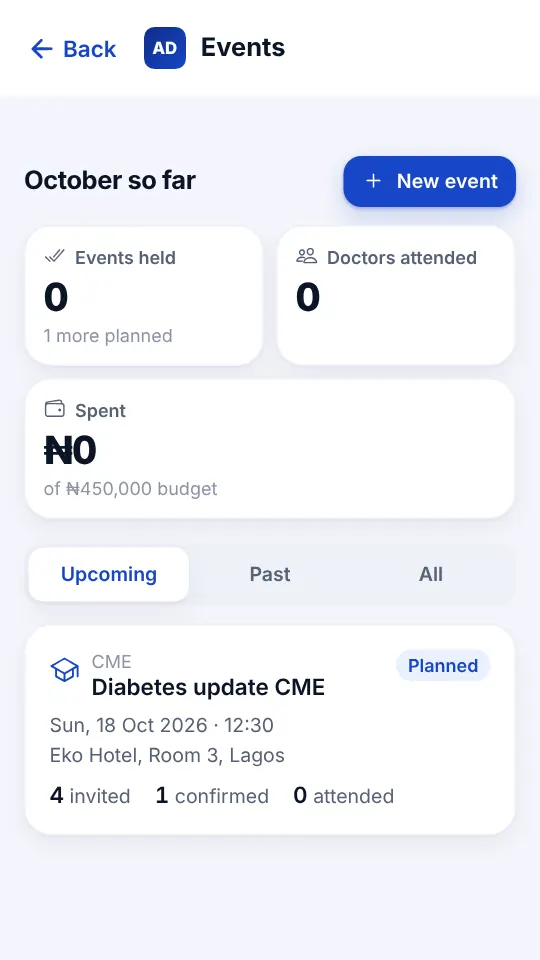
Events and CMEs
Plan events, invite doctors, track who confirmed and attended, and keep the budget.
- Invites, confirmations and attendance
- Budget per event
- Follow-up reminders afterwards
-
Manager · Step 8 of 10
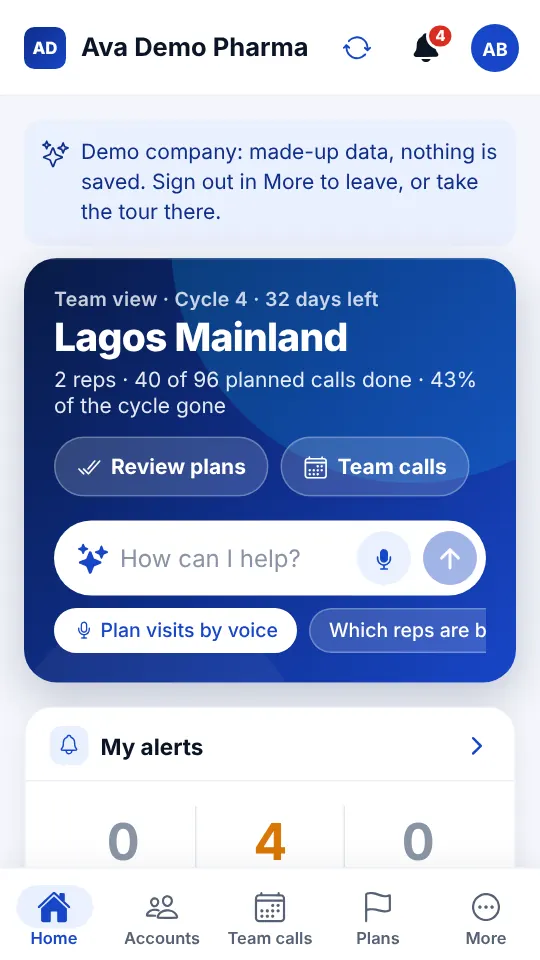
Your team at a glance
First-line managers see the team’s plan progress, alerts and Ask Ava questions such as “Which reps are behind plan?”
- Plan calls done against time gone
- Alerts that need action
- Ask Ava about the team
-
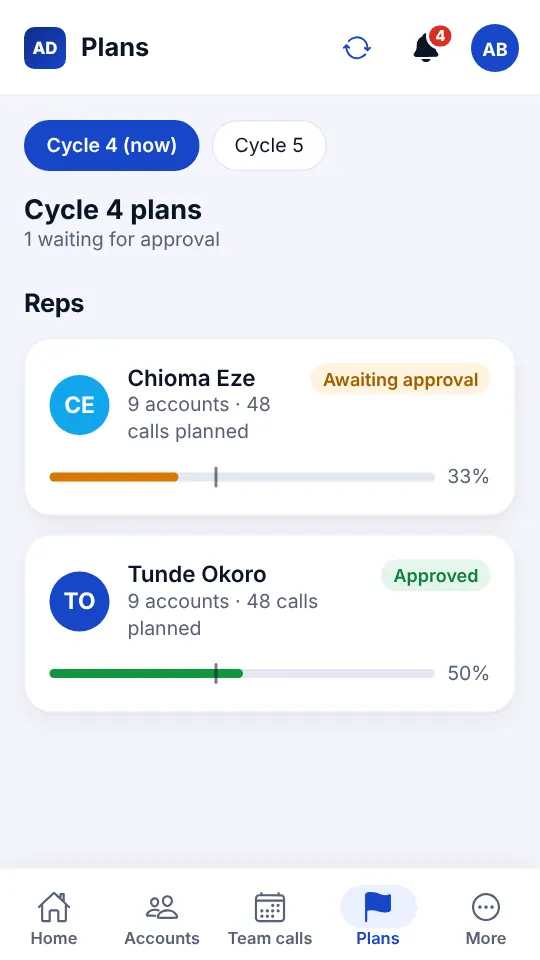
Manager · Step 9 of 10
Approve cycle plans
Review each rep’s plan, approve it, or send it back with a note so the rep can fix it quickly.
- Plans waiting for approval
- Progress for every rep
- Notes kept with the plan
-
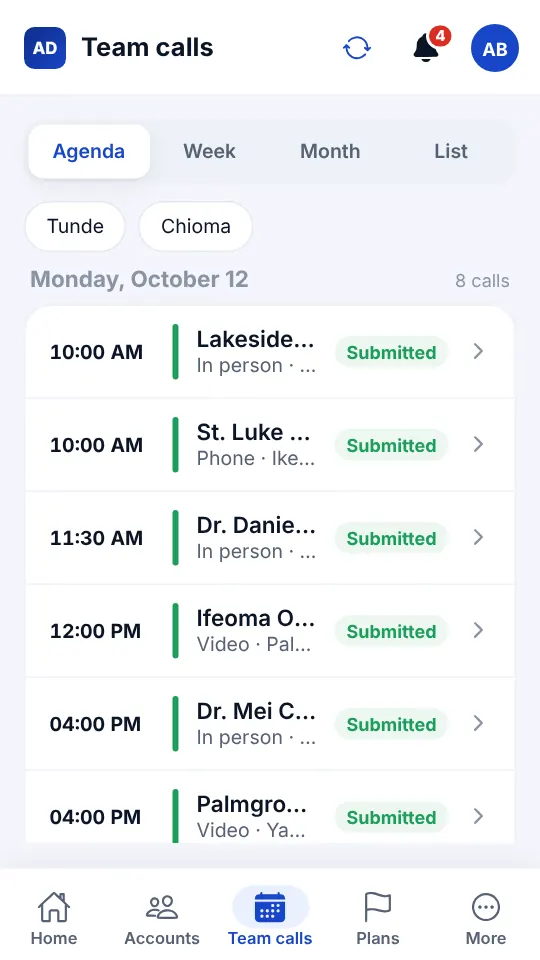
Manager · Step 10 of 10
Team calls
Every call the team made or planned, by agenda, week, month or list, with check-in status.
- Filter by rep
- Submitted and planned calls
- Check-in issues to follow up